

Full Pricing Guide



Frequently Asked Questions
-
Congrats, we can’t wait to work with you!
Now that you’ve booked an inspection with us, you will receive an email confirmation from Spectora Inspection Software (info@spectora.com) with the subject header New Inspection Scheduled Online, stating the address, date, and time for the inspection.
Click the “View Inspection” button at the bottom of the email.
A new tab opens to your client portal dashboard, displaying address, date, and time of the inspection. The dashboard enables you to sign your inspection agreement(s) and pay for your inspection.
To sign your inspection agreement(s), click Sign, initial the documents as needed and then click Agree.
To pay for your inspection, click Select Payment Method.
The Payments page opens and displays your payment options, as well as your inspection summary, details, and fees.Select a payment option:
Pay at Close: Pay at Close allows you to pay for your inspection on your scheduled closing date. To use Pay at Close, you must provide a backup credit card, and payment may be requested from your title company, closing attorney, or closing agent as part of the closing process. If your closing is delayed, canceled, or does not occur, or if payment is not received through the closing process, you remain responsible for the amount owed, and your backup credit card may be charged in accordance with the Pay at Close Customer Terms. *Closing dates must be within 60 days of the inspection date. Please note, a flat rate of $50 is added for this payment option to simply cover the cost of the transaction. We do not profit from this charge.
Pay by Card: Enter your debit or credit card information and then click Pay.
Complete the payment details as needed and then click Submit or Pay.
Note: You can only access your inspection report(s) after you have completed all of your payments in the client portal.
Once your agreement(s) have been signed and your inspection has been paid for, you can sit back and relax and we’ll take it from here!
-
We currently offer the following payment option:
Multi-Party Payments: Easily divide and complete payments from multiple parties. Additional payers will have separate logins, and they do not have access to the report. You’ll be able to access your report once all payments are paid in full.
-
24 hours and day-of are to account for the loss of opportunity to work.
48-hour cancellation: Full refund
24-hour cancellation: Wildwood retains 25% of fees
Same-day cancellation: Wildwood retains 50% of fees
-
Inspectors will walk with you through the home and highlight major concern areas. Walkthroughs take a minimum of 1 hour. Intended to offer a general overview, a walkthrough is not an official inspection; therefore, there will be no equipment, no testing, and no report. We are happy to answer any questions you have, and we highly encourage note-taking!
-
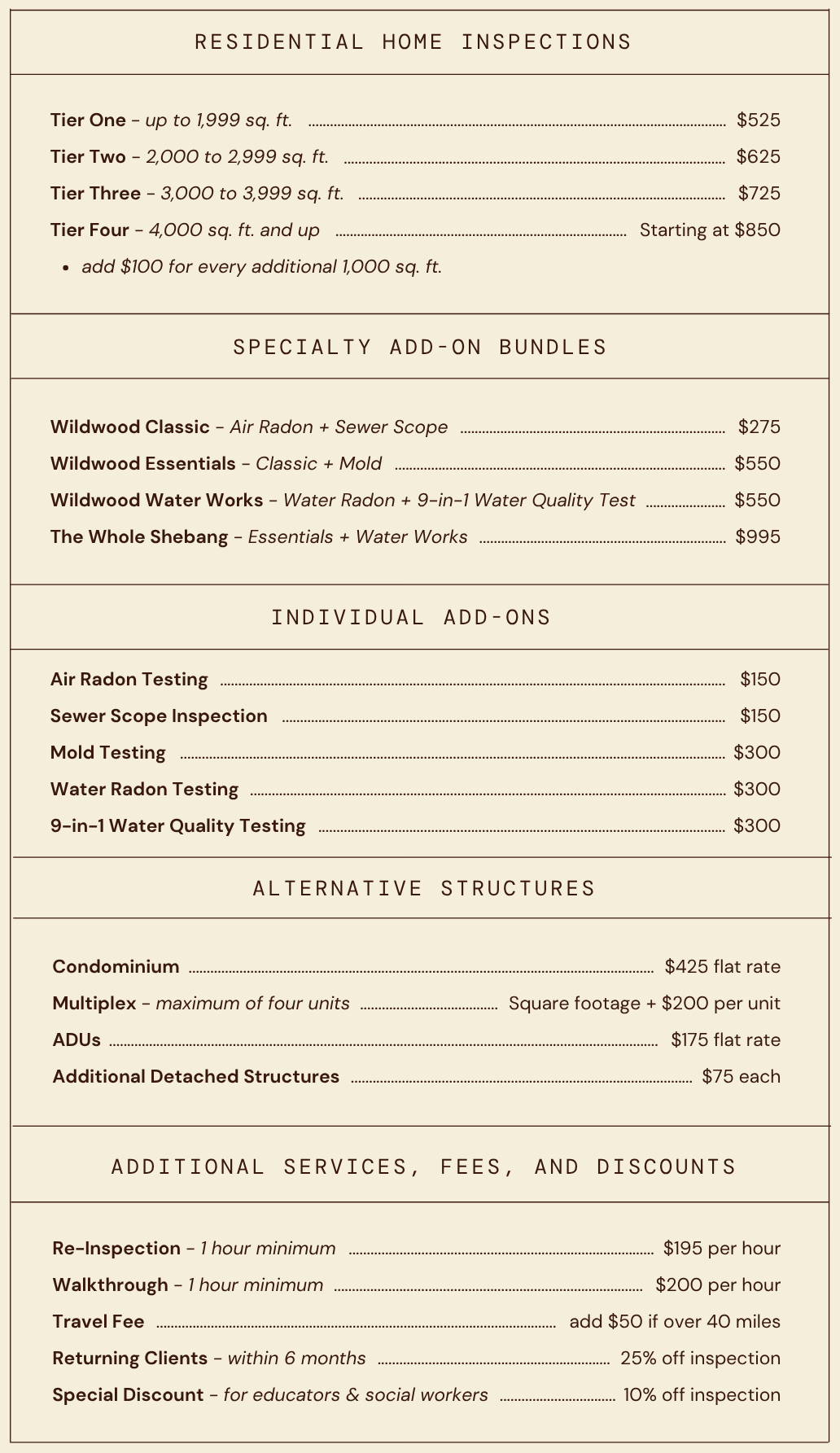
Not to worry, we’ve got your back! Returning clients - those who have had an inspection done by Wildwood Property Inspections LLC within 6 months of their original inspection - will receive 25% off the cost of their next inspection if they re-book with us.
-
A condominium is a privately owned unit within a larger building or complex. A resident owns the interior space of the condo, while the building/complex roof, foundation, exterior, and surrounding property is shared and maintained by an HOA (Home Owners Association) or COA (Condo Owners Association). Therefore, a condo inspection focuses strictly on the interior of the individual unit and its appliances. Please note that a condo inspection does not include the roof, foundation, building exterior, crawl space, attic, or surrounding property.
-
We currently offer two discounts.
Returning Client Discount: This is for clients who previously booked with Wildwood Property Inspections, but the deal on the house fell through. These clients are eligible to receive 25% off for a second home inspection within 6 months of the initial inspection.
Special Discount: Educators and social workers work hard to support our communities in countless ways. So as our way of saying thank you, we would like to offer 10% off your inspection for educators and social workers!
-
We have a free, customizable “Repair Request Builder” tool available for agents and clients to easily request credit, repairs, or replacements from the seller. After an inspection, you’ll be able to access the repair request builder in two different ways.
From a published report: While viewing a published report on the web, click Report Tools in the upper right corner and select Repair Request Builder.
From the client portal: Navigate to the inspection’s client portal and click the Get Started button under Try Repair Request Builder. This button appears once per portal after a report has been viewed.
For more information, here is a VIDEO TUTORIAL on how to use the Repair Request Builder.